
Use of the Coordinate Axes
Command:
Menu【Node>Show Axe】 Menu【Node>Hide Axe】
一、The name of each part of the Coordinate Axes:
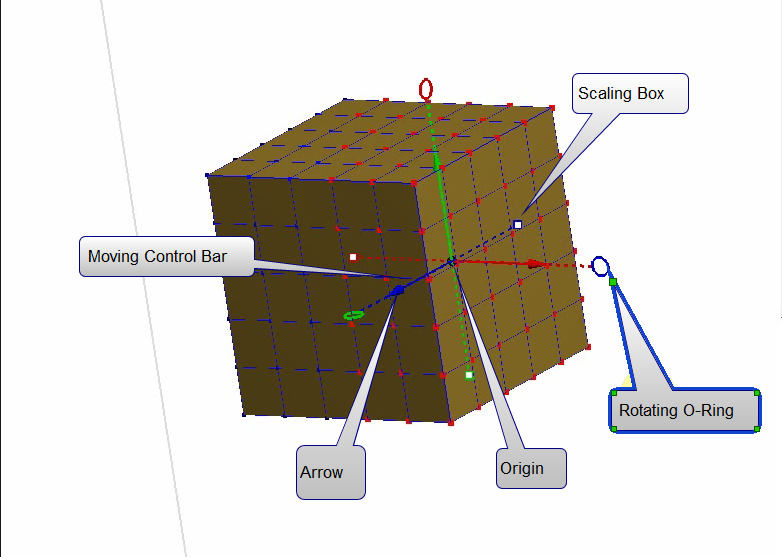
To operate the any part of the Coordinate Axes, you can move、scale or rotate the selected object.( it can be achieved by operating the corresponding part of the Coordinate Axes while pressing the left button of the mouse).
To operate the any part of the Coordinate Axes, you can also move or rotate the Coordinate Axes itself.( it can be achieved by operating the corresponding part of the Coordinate Axes while pressing the right button of the mouse).
二、Transformation of the Coordinate Axes itself.
To transform the Coordinate Axes itself is to adjust the it’s position, so as to facilitate the transformation of the selected object.
1、Moving of the Coordinate Axes itself:
1)holding the right button of the mouse,while you can move the Coordinate Axes along the X-axe、the Y-axe or the Z-axe.
2)holding the right button of the mouse, click and drag the origin of coordinate, while you can move the Coordinate Axes in any direction.
2、Rotation of the Coordinate Axes itself:
There is a circle in front of the arrow of the X-axe、the Y-axe or the Z-axe respectively. You can click and drag this circle while pressing the right button of the mouse to rotate the selected object.
三、Transformation of the selected object:
1、Moving:
1)、holding the left button of the mouse,while you can move the Coordinate Axes along the X-axe、the Y-axe or the Z-axe.
2)、The precise movement of the graph or the object: Click the moving control bar of X-axe、the Y-axe or the Z-axe and input the figures as the input box occurs, then press the“enter” key. You can move the selected graph or the object along the X-axe、the Y-axe or the Z-axe precisely.
2、Scaling:
1)、Scaling along the single Coordinate Axes.
There is a white box in the rear of the moving control bar of the X-axe、the Y-axe or the Z-axe respectively. To Click and drag this box along the X-axe、the Y-axe or the Z-axe , you can scale in or out the selected graph or the object.
2)、Scaling along the two Coordinate Axis simultaneously.
① In the X-axes direction,click the white box in the rear of moving control bar of the X-axis and press the”shift”key as the same time. The selected object will be scaled in or out in both the X-axes and Y-axes directions.
②In the Y-axes direction, click the white box in the rear of moving control bar the Y-axes and press the”shift”key as the same time. The selected object will be scaled in or out along both the Y-axes and Z-axes directions.
③ In the Z-axes direction, click the white box in the rear of the moving control bar of the Z-axis and press the”shift”key as the same time. The selected object will be scaled in or out in both the Z-axes and the X-axes directions.
3)、Scaling along the three Coordinate Axis simultaneously.
click the white box in the rear of the moving control bar of the X-axes 、Y-axes or the Z-axes and press the”CTRL”key as the same time. The selected object will be scaled in or out among the X-axes 、Y-axes and the Z-axes directions simultaneously.
3、Rotation:
There is a circle in front of the arrow of the X-axe、the Y-axe or the Z-axe respectively. You can click and drag this circle to rotate the selected object.
四、Application Example:
Example 1:
Example2: